
 Google Calendar
  Outlook Calendar
  Google Meet
  Microsoft Teams
  Zoom Meetings
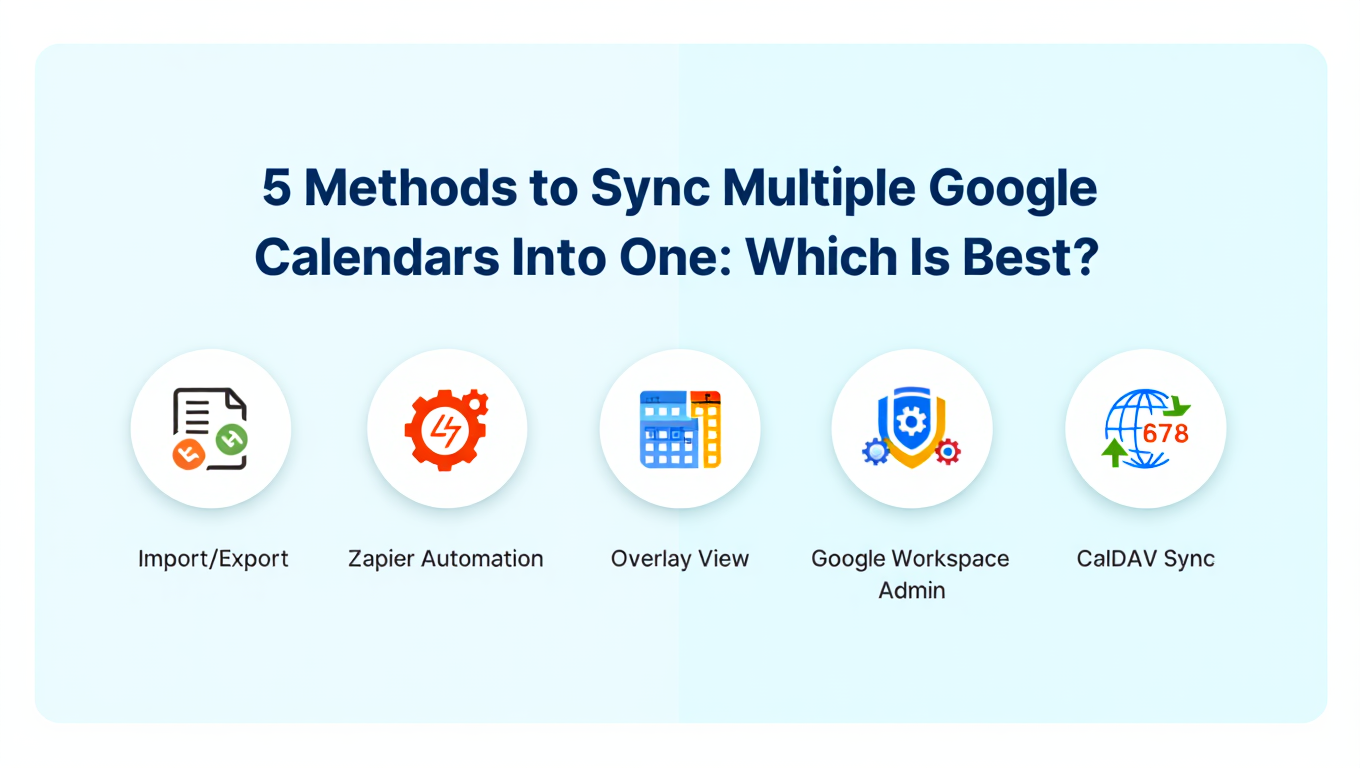
 5 Methods to Sync Multiple Google Calendars Into One: Which Is Best?
Compare 5 proven methods for syncing multiple Google calendars into one unified view. Expert analysis of pros, cons, and best use cases for each approach.
Marcus tried four different approaches to sync his seven Google Calendar accounts before finding one that actually worked. First, he used Google Calendar's native overlay view, but kept double-booking because calendars didn't actually sync availability. Then he manually copied events between accounts, which took hours and broke the moment anything changed. Next, he tried a free calendar app that mysteriously stopped syncing after two weeks. Finally, he discovered professional calendar synchronization tools that actually consolidated all seven accounts reliably.
His journey wasted three weeks and caused multiple scheduling conflicts with clients. With proper method selection from the start, Marcus could have implemented reliable synchronization in under an hour.
Choosing the right method to sync multiple Google calendars into one determines whether you eliminate calendar chaos or create new problems. Different approaches work for different scenarios, calendar counts, and technical requirements.
This comprehensive comparison analyzes five proven methods for syncing multiple Google calendars into one, evaluating each approach's strengths, limitations, ideal use cases, and real-world performance based on 2025 testing.
- Five distinct methods for syncing multiple Google calendars into one unified view
- Detailed pros and cons analysis for each synchronization approach
- When to use each method based on calendar count and requirements
- Performance comparison of native vs. third-party solutions
- Expert recommendations for different user scenarios
- Cost analysis and implementation complexity for each method
Why Method Selection Matters for Google Calendar Sync
Not all calendar synchronization approaches are created equal. The method you choose dramatically impacts reliability, time investment, and whether you actually prevent double bookings.
According to 2024 productivity research from Statista, 82 percent of people lack effective time management systems, with 35 percent identifying time management as their biggest challenge. For professionals managing multiple Google Workspace accounts, choosing the wrong synchronization method compounds these challenges instead of solving them. Compare different calendar aggregator tools to find the right solution.
The Wrong Method Creates New Problems
Using Google Calendar's basic overlay view when you actually need bidirectional synchronization doesn't prevent conflicts. It creates a false sense of consolidation while leaving you vulnerable to double bookings.
Implementing manual import and export when managing active calendars creates endless maintenance burden. You'll spend more time managing synchronization than the synchronization saves.
Selecting a free calendar app with unreliable sync algorithms leads to missing events, failed updates, and calendar data inconsistency that damages professional credibility.
The Right Method Eliminates Calendar Chaos
Matching synchronization method to your specific requirements, calendar count, and technical constraints ensures you get genuine consolidation without creating maintenance overhead or reliability problems.
Professionals who choose appropriate methods report 70-90 percent reduction in calendar management time, near-total elimination of double bookings, and significant decrease in scheduling-related stress. For comprehensive integration strategies, see our guide on syncing work and personal calendars.
Quick Comparison: All 5 Methods at a Glance
Before diving into detailed analysis, here's how the five methods compare across key criteria.
This comparison reveals that free native methods sacrifice functionality for zero cost, while paid synchronization tools provide genuine consolidation worth the investment for professionals managing multiple Google Workspace accounts.
Method 1: Google Calendar Native Overlay View
Google Calendar's built-in overlay feature lets you view multiple calendars simultaneously by checking boxes in the sidebar to display calendars together.
How It Works
When signed into your primary Google account, you add calendars from other Google accounts to your sidebar under Other Calendars. Checking the box next to each calendar name displays events from that calendar in your unified view using different colors to distinguish sources.
All selected calendars overlay in one interface. Events from your personal Gmail calendar, Google Workspace accounts, and shared calendars appear together visually.
Pros of Native Overlay View
Zero Cost: Completely free with no subscription fees or tool purchases required. Anyone with multiple Google accounts can use overlay view immediately.
No Third-Party Access: Doesn't require authorizing external tools to access your Google Calendar data. All functionality remains within Google's ecosystem.
Unlimited Calendar Support: You can add and overlay as many Google calendars as you want. Google doesn't impose artificial limits on calendar count.
Simple Setup: Adding calendars takes only a few minutes per account. No complex configuration or technical knowledge required.
Mobile Access: Google Calendar mobile apps display overlay view when you add and enable calendars from multiple accounts.
Cons of Native Overlay View
No Availability Consolidation: Events from secondary calendars don't block availability in your primary calendar. When someone checks your availability or books through scheduling links, they only see your primary calendar's events.
No Actual Synchronization: Calendars remain completely separate despite visual overlay. Creating an event in one calendar doesn't replicate it to other calendars automatically.
Double Bookings Still Occur: Because availability isn't consolidated, you can still accidentally book conflicting events in different Google accounts.
Manual Refresh Delays: Changes in secondary calendars may take several minutes to appear in overlay view. Google Calendar doesn't provide instant real-time updates through overlay.
Complex with Many Calendars: Managing 6, 8, or 10+ calendars through overlay becomes unwieldy with many checkboxes and colors to track visually.
No Privacy Controls: You can't configure how event details appear. Calendars display with full information or not at all.
When to Use Native Overlay View
Overlay view works well when you need basic visual reference of 2-3 Google calendars, don't need true availability consolidation, want zero-cost solution with no third-party tools, or only occasionally reference multiple calendars rather than actively scheduling across them.
Overlay view fails when you need to prevent double bookings, manage 6+ Google Workspace accounts, consolidate availability for scheduling tools, or require bidirectional synchronization between calendars.
Performance Rating
Reliability: 5/10. Displays calendars consistently but doesn't actually sync them.
Scalability: 4/10. Becomes difficult to manage with 6+ calendars.
Effectiveness: 3/10. Provides visibility without the consolidation most professionals actually need.
Overall: 4/10. Good for basic visual reference, inadequate for true calendar synchronization.
Method 2: Google Calendar Sharing
Google Calendar's sharing feature makes one calendar visible within another Google account by granting access permissions.
How It Works
You share calendars from each Google account with your other Google accounts. For example, share your Google Workspace calendar with your personal Gmail account, then share your personal Gmail calendar back to your Google Workspace account.
Shared calendars appear in the Other Calendars section of destination accounts. Enabling shared calendars displays events from source accounts in destination views.
Pros of Calendar Sharing
Free Solution: No cost for sharing calendars between Google accounts. Built-in Google Calendar functionality.
Granular Permissions: Control what others can see with options including see only free/busy, see all event details, make changes to events, or make changes and manage sharing.
Works Across Google Accounts: Share personal Gmail calendars with Google Workspace accounts and vice versa without restrictions.
Selective Visibility: Choose which calendars to share and with whom, maintaining privacy for calendars you don't want consolidated.
No External Tools Required: Everything happens within Google Calendar's native interface without authorizing third-party applications.
Cons of Calendar Sharing
No Bidirectional Availability: Events shared from Account A appear in Account B, but availability checking in Account B doesn't recognize shared events as blocking time.
One-Way by Default: Sharing requires manual setup in both directions. Share Calendar A to Calendar B, then separately share Calendar B to Calendar A.
Doesn't Prevent Double Bookings: Because availability isn't consolidated, scheduling tools and availability checks only see events in the primary calendar, not shared calendars.
Complex Setup at Scale: With 6+ Google accounts, sharing every calendar with every other calendar creates unwieldy configuration. You need separate sharing setups for each combination.
Shared Calendar Limitations: Some calendar features don't work identically for shared calendars vs. owned calendars. Event creation and modification may behave differently.
No Privacy Masking: You can hide all details with free/busy mode or show all details, but can't mask event titles while showing time blocks.
When to Use Calendar Sharing
Calendar sharing works well when you manage 2-3 Google accounts, need basic cross-account visibility without true synchronization, want to share specific calendars with family members or colleagues, or don't mind that availability isn't fully consolidated.
Calendar sharing fails when you need to prevent double bookings reliably, manage 6+ Google Workspace accounts, use scheduling tools that check availability, or require bidirectional synchronization.
Performance Rating
Reliability: 6/10. Shares calendars consistently but doesn't consolidate availability.
Scalability: 5/10. Becomes complex with many accounts requiring multiple sharing configurations.
Effectiveness: 5/10. Provides visibility with partial consolidation.
Overall: 5.5/10. Better than overlay view for cross-account visibility but still doesn't provide true synchronization.
Method 3: Manual Import and Export
Google Calendar's import and export features let you download calendar data as ICS files and upload them into other accounts.
How It Works
Export calendar data from one Google account as ICS files using Settings, then Import & Export function. Download produces a ZIP file containing separate ICS files for each calendar in the account.
Import ICS files into destination Google accounts using the Import function, selecting which calendar should receive imported events. Repeat for each Google account you want to consolidate.
Pros of Import/Export
Free Solution: No cost for importing and exporting calendar data. Built-in Google Calendar functionality.
Works for Historical Data: Excellent for one-time migration of old events from inactive accounts into your current primary calendar.
Complete Control: You decide exactly which events to import and where they should appear in destination calendars.
No Third-Party Access: All operations happen within Google Calendar without authorizing external applications.
Consolidates Data Permanently: Imported events become part of the destination calendar rather than remaining linked to source.
Cons of Import/Export
No Ongoing Synchronization: Imported events are one-time copies. Future events in source calendars don't automatically appear in destination calendars.
Requires Constant Repetition: For active calendars, you must manually repeat export and import constantly to keep calendars synchronized.
No Bidirectional Updates: Changes to imported events in destination calendars don't affect source calendars, creating data inconsistency.
Guest Lists and Conferences Lost: Import doesn't preserve attendees or Google Meet conference information. You must manually recreate these for imported events.
File Size Limitations: Google Calendar only processes import files up to 1MB. Large calendars with extensive history may fail to import.
Duplicate Event Risk: Repeatedly importing from the same source creates duplicate events unless you manually clean up between imports.
Extremely Time-Intensive: For professionals managing multiple active Google Workspace accounts, manual import/export creates hours of weekly maintenance burden.
When to Use Import/Export
Import and export works well when you need one-time consolidation of historical data from old accounts, want to migrate from one Google Workspace account to another permanently, or are combining inactive calendars you no longer actively use.
Import and export fails when you manage multiple active Google calendars, need ongoing synchronization rather than one-time migration, or want to avoid constant manual maintenance.
Performance Rating
Reliability: 7/10. Imports data consistently but creates one-time copies without ongoing sync.
Scalability: 2/10. Completely impractical for managing multiple active calendars.
Effectiveness: 3/10. Good for migration, terrible for ongoing synchronization.
Overall: 4/10. Useful for specific migration scenarios but inadequate for calendar synchronization needs.
Method 4: Third-Party Calendar Synchronization Tools
Dedicated calendar synchronization tools provide automated real-time syncing with bidirectional updates across multiple Google Calendar accounts.
How It Works
Connect all your Google Calendar accounts to a synchronization tool using OAuth authentication. Configure synchronization rules including sync direction, event detail control, and privacy settings. The tool monitors all connected calendars for changes and automatically replicates events based on your configuration.
Create an event in any Google account and it appears in all synchronized calendars within 1-2 minutes. Modify or delete events anywhere and changes propagate everywhere automatically.
Top Tools in This Category
OneCal: Supports Google Calendar, Outlook, and iCloud with unique multi-calendar sync requiring only one configuration for multiple calendars. Pricing ranges from $5 monthly for 2 calendars to $30 monthly for unlimited calendars.
CalendarBridge: Provides fast real-time syncing with changes propagating within 1-2 minutes. Supports checking availability across up to 4 connected calendars with syncing handling more.
SyncThemCalendars: Rated 4.9/5 with simple setup taking under 2 minutes. One flat rate for up to 5 calendars with immediate change reflection.
Need better calendar management? CalendHub unifies all your calendars with smart scheduling and video conferencing.
Sync Calendars (Google Workspace Add-On): Direct integration within Google Calendar interface supporting unlimited Google accounts with real-time synchronization.
Pros of Third-Party Sync Tools
True Bidirectional Synchronization: Events sync in both directions automatically. Create anywhere, appears everywhere. Modify anywhere, changes everywhere.
Prevents Double Bookings: Consolidated availability means time blocked in one calendar blocks time in all calendars, preventing conflicts.
Real-Time Updates: Quality tools sync changes within 1-2 minutes. Create an event and it appears across all Google accounts almost immediately.
Privacy Controls: Configure how event details appear across calendars. Show full details, busy blocks only, or masked titles based on your requirements.
Automated Maintenance: After initial setup, synchronization runs continuously without manual intervention or repetitive tasks.
Support Multiple Calendar Types: Many tools sync Google Calendar with Outlook and iCloud, not just Google-to-Google synchronization.
Professional Reliability: Reputable tools provide 99 percent or higher sync success rates with error handling and automatic retry logic.
Cons of Third-Party Sync Tools
Monthly Subscription Cost: Quality synchronization requires paid subscriptions typically ranging from $5 to $30 monthly.
Calendar Connection Limits: Some tools limit how many calendars you can connect on lower-tier plans. Entry-level plans often support 2-5 calendars only.
Third-Party Access Required: You must authorize tools to access your Google Calendar data, though reputable tools use secure OAuth authentication.
Initial Setup Time: Connecting multiple Google accounts and configuring synchronization rules takes 30-45 minutes initially.
Authentication Maintenance: Google Calendar API tokens expire periodically, requiring occasional re-authentication of connected accounts.
Variable Quality: Not all synchronization tools provide equal reliability. Some cheaper or free tools have poor sync algorithms that miss events or create duplicates.
When to Use Third-Party Sync Tools
Third-party synchronization tools work excellently when you manage 3-10 active Google Calendar accounts, need true availability consolidation that prevents double bookings, want automated synchronization without manual maintenance, can invest $5-30 monthly for reliable syncing, or require privacy controls for work and personal calendar separation.
Third-party tools may be overkill when you only manage 2 calendars with minimal scheduling needs, have zero budget for calendar solutions, or are uncomfortable authorizing external tools to access Google Calendar data.
Performance Rating
Reliability: 9/10. Quality tools provide consistent real-time synchronization with high success rates.
Scalability: 7/10. Works well for 3-10 calendars but may have connection limits.
Effectiveness: 9/10. Provides the true synchronization most professionals need.
Overall: 8.5/10. Excellent solution for moderate calendar portfolios with robust synchronization needs.
Method 5: Professional Calendar Management Platforms
Professional calendar management platforms provide unlimited Google Calendar connections with advanced features designed specifically for extensive calendar portfolios.
How It Works
Similar to third-party sync tools but built specifically for professionals managing many calendars. Connect unlimited Google Calendar accounts without artificial restrictions. Configure sophisticated synchronization rules with advanced privacy controls, filtering, and calendar hierarchy management.
These platforms provide interfaces designed for viewing and managing 10, 15, even 20+ calendars simultaneously rather than basic 3-5 calendar scenarios.
Top Platform in This Category
CalendHub.com: Built specifically for consultants and executives managing extensive Google Workspace portfolios. Eliminates arbitrary calendar connection limits with unlimited Google Calendar support. Provides professional-grade unified calendar management with advanced filtering to focus on relevant calendars when needed.
Pros of Professional Platforms
Unlimited Calendar Connections: No artificial caps on how many Google Calendar accounts you can connect. Designed for extensive portfolios.
Interface Designed for Scale: View and manage 10+ calendars simultaneously with filtering, grouping, and hierarchy features.
Advanced Synchronization Rules: Implement hub-and-spoke architectures, selective sync rules, and sophisticated privacy boundaries between different calendar groups.
Professional Reliability: Enterprise-grade synchronization with guaranteed uptime and support for business-critical calendar management.
Comprehensive Feature Sets: Beyond basic synchronization, platforms often include unified calendar views, advanced scheduling, availability management, and integration with other business tools.
No 6-Calendar Limit Problems: Unlike scheduling tools like Calendly that cap connections at 6 calendars, professional platforms eliminate this constraint entirely.
Designed for Business Use: Security, compliance, and reliability standards appropriate for professional consulting practices and enterprise environments.
Cons of Professional Platforms
Higher Cost: Professional platforms typically cost more than basic synchronization tools, though pricing varies by platform and features.
May Include Unneeded Features: If you only need basic synchronization, professional platforms may provide more functionality than required.
Requires Business Justification: The investment makes sense for professionals managing extensive calendar portfolios but may be excessive for casual users.
When to Use Professional Platforms
Professional calendar management platforms work excellently when you manage 6, 10, 15+ Google Calendar accounts across multiple Google Workspace organizations, hit the 6-calendar limit in tools like Calendly, run a consulting practice with multiple simultaneous client engagements, need enterprise-grade reliability for business-critical calendar management, or require advanced features beyond basic synchronization.
Professional platforms may be unnecessary when you only manage 2-5 Google calendars, have simple synchronization needs met by basic tools, or don't require unlimited calendar connections.
Performance Rating
Reliability: 10/10. Enterprise-grade synchronization with maximum uptime and support.
Scalability: 10/10. Designed specifically for extensive calendar portfolios without limits.
Effectiveness: 10/10. Provides comprehensive calendar management beyond just synchronization.
Overall: 10/10. The gold standard for professionals managing many Google Workspace accounts.
Detailed Method Comparison by Use Case
Different scenarios require different synchronization approaches. Here's which method works best for common situations.
Use Case 1: Managing 2-3 Personal Google Accounts
Scenario: You have a personal Gmail calendar, a side business Google account, and a shared family calendar.
Best Method: Calendar Sharing (Method 2) or basic Third-Party Sync Tool (Method 4)
Why: With only 2-3 calendars, calendar sharing provides adequate cross-account visibility for free. If you need true availability consolidation, entry-level third-party tools like OneCal's $5 monthly plan handle 2 calendars perfectly.
Avoid: Professional platforms are overkill. Native overlay view doesn't prevent conflicts.
Use Case 2: Consultant with 5-8 Client Google Workspace Accounts
Scenario: You maintain separate Google Workspace accounts for different consulting clients plus your personal calendar.
Best Method: Third-Party Sync Tools (Method 4) or Professional Platform (Method 5)
Why: You need true bidirectional synchronization to prevent double bookings across clients. Third-party tools work well up to their calendar limits. If you manage 6+ accounts, professional platforms like CalendHub.com eliminate connection restrictions.
Avoid: Manual import/export creates unsustainable maintenance burden. Calendar sharing doesn't consolidate availability.
Use Case 3: Executive with 10+ Google Calendars
Scenario: You manage multiple Google Workspace accounts for different board positions, business ventures, and organizations plus personal calendars.
Best Method: Professional Calendar Management Platform (Method 5)
Why: With 10+ calendars, you need unlimited connections, interface designed for scale, and advanced synchronization rules. CalendHub.com was built specifically for this scenario.
Avoid: Third-party tools with calendar connection limits force you to exclude calendars. Native methods become completely unmanageable at this scale.
Use Case 4: One-Time Account Consolidation
Scenario: You're switching from an old Google Workspace account to a new one and want to migrate historical calendar data once.
Best Method: Manual Import/Export (Method 3)
Why: For one-time migration, import/export works perfectly. No need for ongoing synchronization tools since you're abandoning the old account.
Avoid: Don't pay for synchronization tools when you only need one-time data migration.
Use Case 5: Basic Visual Reference Only
Scenario: You occasionally want to see your work and personal calendars together but don't actively schedule across them.
Best Method: Native Overlay View (Method 1)
Why: For pure visual reference without true synchronization needs, free native overlay view provides adequate functionality.
Avoid: Don't invest in synchronization tools if you don't need availability consolidation.
- 2-3 calendars, basic needs: Use Calendar Sharing (Method 2)
- 3-5 calendars, need sync: Use Third-Party Tools like OneCal (Method 4)
- 6-10 calendars, professional use: Use Professional Platform like CalendHub.com (Method 5)
- 10+ calendars, extensive portfolio: Use Professional Platform (Method 5) - only option
- One-time migration: Use Import/Export (Method 3)
- Visual reference only: Use Native Overlay (Method 1)
Cost-Benefit Analysis Across Methods
Understanding total cost of ownership helps justify investment in paid synchronization solutions.
Free Methods (1-3) Total Cost
Direct Cost: $0 annually
Time Investment:
- Native Overlay View: 2 hours annually maintaining configurations
- Calendar Sharing: 3 hours annually managing sharing permissions
- Import/Export for active calendars: 104 hours annually repeating manual processes
Opportunity Cost: Professional managing 5 Google Workspace accounts wastes approximately 200 hours annually on calendar coordination without proper sync. At $100 hourly consulting rate, that's $20,000 in lost productivity.
Risk Cost: Double bookings damage client relationships. One lost client worth $50,000 annually due to scheduling conflicts far exceeds any synchronization tool cost.
Total Cost of Free Methods: $0 direct + up to $20,000 opportunity cost + client relationship risk
Paid Third-Party Tools (Method 4) Total Cost
Direct Cost: $60-360 annually depending on tool and plan
Time Investment: 1 hour initial setup + 2 hours annually for authentication maintenance = 3 hours total
Time Savings: Eliminates 180+ hours of manual calendar coordination annually
Opportunity Value: 180 saved hours at $100 hourly rate = $18,000 value
Risk Reduction: Near-total elimination of double booking incidents preserves client relationships
Net Value: $18,000 value - $360 cost = $17,640 annual benefit
ROI: 4,900 percent return on investment
Professional Platforms (Method 5) Total Cost
Direct Cost: Varies by platform, typically $300-1,200 annually
Time Investment: 1.5 hours initial setup + 1 hour annually maintenance = 2.5 hours total
Time Savings: Eliminates 190+ hours annually with superior interface and automation
Opportunity Value: 190 saved hours at $100 hourly rate = $19,000 value
Risk Reduction: Enterprise-grade reliability eliminates scheduling risk for business-critical engagements
Net Value: $19,000 value - $1,200 cost = $17,800 annual benefit
ROI: 1,483 percent return on investment
The cost-benefit analysis reveals that even expensive professional platforms deliver massive positive ROI for consultants and executives managing multiple Google Workspace accounts. The opportunity cost of wasted time far exceeds subscription fees.
Common Mistakes When Choosing Sync Methods
Avoid these frequent errors that lead to failed synchronization implementations.
Mistake 1: Choosing Free Methods for Professional Use
Many professionals attempt to use free native Google Calendar features for business-critical calendar management. They waste weeks fighting limitations before eventually adopting proper tools.
Reality is that free methods don't provide the availability consolidation and reliability that professional practice requires. The $10-30 monthly investment in quality synchronization pays for itself within hours through time savings.
Mistake 2: Selecting Tools with Calendar Limits
Choosing a synchronization tool that caps connections at 5 or 6 calendars works initially but becomes a constraint as your consulting practice grows. You're forced to choose which calendars to exclude or switch tools later.
Select tools with unlimited connections or high enough limits that you won't hit them as your calendar portfolio expands.
Mistake 3: Ignoring Privacy Controls
Implementing synchronization without configuring privacy boundaries exposes client information inappropriately or shows personal calendar details on work accounts shared with colleagues.
Always configure privacy masking and selective synchronization rules before connecting work and personal Google calendars.
Mistake 4: Not Testing Before Relying on Sync
Some professionals configure synchronization and immediately trust it for real scheduling without thorough testing. When sync fails, they create double bookings that damage client relationships.
Always test synchronization thoroughly with non-critical events before relying on it for actual calendar management.
Mistake 5: Choosing Based on Price Alone
Selecting the cheapest synchronization tool often leads to unreliable sync, poor support, and calendar problems that cost more than premium tools would have cost.
Evaluate tools based on reliability, features, and calendar limits rather than focusing exclusively on lowest price.
Expert Recommendations by Calendar Count
Based on 2025 testing and analysis, here are definitive recommendations for different scenarios.
For 2-3 Google Calendars
Recommended Method: Third-Party Sync Tool (Method 4) - OneCal Starter Plan
Why: Even with few calendars, true synchronization prevents conflicts. OneCal's $5 monthly plan provides professional reliability for minimal cost.
Alternative: Calendar Sharing (Method 2) if you absolutely need zero-cost solution and don't require availability consolidation.
For 4-6 Google Calendars
Recommended Method: Third-Party Sync Tool (Method 4) - OneCal Essential Plan or CalendarBridge
Why: These tools handle moderate calendar portfolios well with real-time synchronization and privacy controls. OneCal Essential at $10 monthly supports up to 5 calendars. CalendarBridge handles slightly more.
Warning: Watch for approaching calendar limits. If you expect growth beyond 6 calendars, consider professional platforms instead.
For 7-10 Google Calendars
Recommended Method: Professional Calendar Management Platform (Method 5) - CalendHub.com
Why: You've exceeded limits of many basic synchronization tools. Professional platforms provide unlimited connections without forcing you to exclude calendars.
Alternative: OneCal Premium at $30 monthly supports unlimited calendars and may work if you don't need advanced management features.
For 10+ Google Calendars
Recommended Method: Professional Calendar Management Platform (Method 5) - CalendHub.com
Why: Managing extensive calendar portfolios requires tools built specifically for scale. CalendHub.com provides interface designed for many simultaneous calendars, advanced synchronization rules, and enterprise reliability.
No Alternative: Basic synchronization tools aren't designed for this scale. Professional platforms are the only viable option.
Conclusion: Choose the Right Method for Your Needs
The method you choose to sync multiple Google calendars into one determines whether you eliminate calendar chaos or waste time fighting tool limitations.
For professionals managing 2-3 calendars, basic third-party synchronization tools like OneCal's entry plans provide excellent reliability for minimal cost. For consultants managing 5-8 client Google Workspace accounts, quality synchronization tools or professional platforms prevent double bookings and save hours weekly. For executives managing 10+ Google calendars across multiple organizations, professional platforms like CalendHub.com are the only practical solution.
Free native Google Calendar methods work for visual reference but don't provide the true availability consolidation that prevents scheduling conflicts. Manual import/export creates unsustainable maintenance burden for active calendars. Third-party synchronization tools offer the best balance of features, reliability, and cost for moderate calendar portfolios. Professional platforms excel for extensive portfolios requiring unlimited connections.
Your Next Steps:
Count your Google Calendar accounts including all Gmail and Google Workspace calendars you actively use
Assess your requirements including whether you need true availability consolidation, what privacy controls are necessary, and what budget you can allocate
Select appropriate method using the recommendations in this guide based on your calendar count
Implement and test thoroughly before relying on synchronization for real scheduling
Monitor performance during first weeks to ensure reliable operation
Don't let arbitrary calendar limits constrain your professional practice. While basic tools restrict connections at 5-6 calendars, professional platforms like CalendHub.com eliminate these caps entirely because consultants managing complex client portfolios need unlimited calendar support.
Stop wasting hours on manual calendar coordination. Stop risking double bookings with inadequate synchronization methods. Choose the right approach for your specific needs and reclaim time for productive work.
Ready to sync unlimited Google Calendar accounts with professional-grade reliability? Explore CalendHub.com's calendar management platform built specifically for extensive Google Workspace portfolios without restrictions.
Ready to Simplify Your Schedule?
Join thousands of professionals who have unified their calendars and reclaimed their time with CalendHub's intelligent scheduling platform.
Related Articles
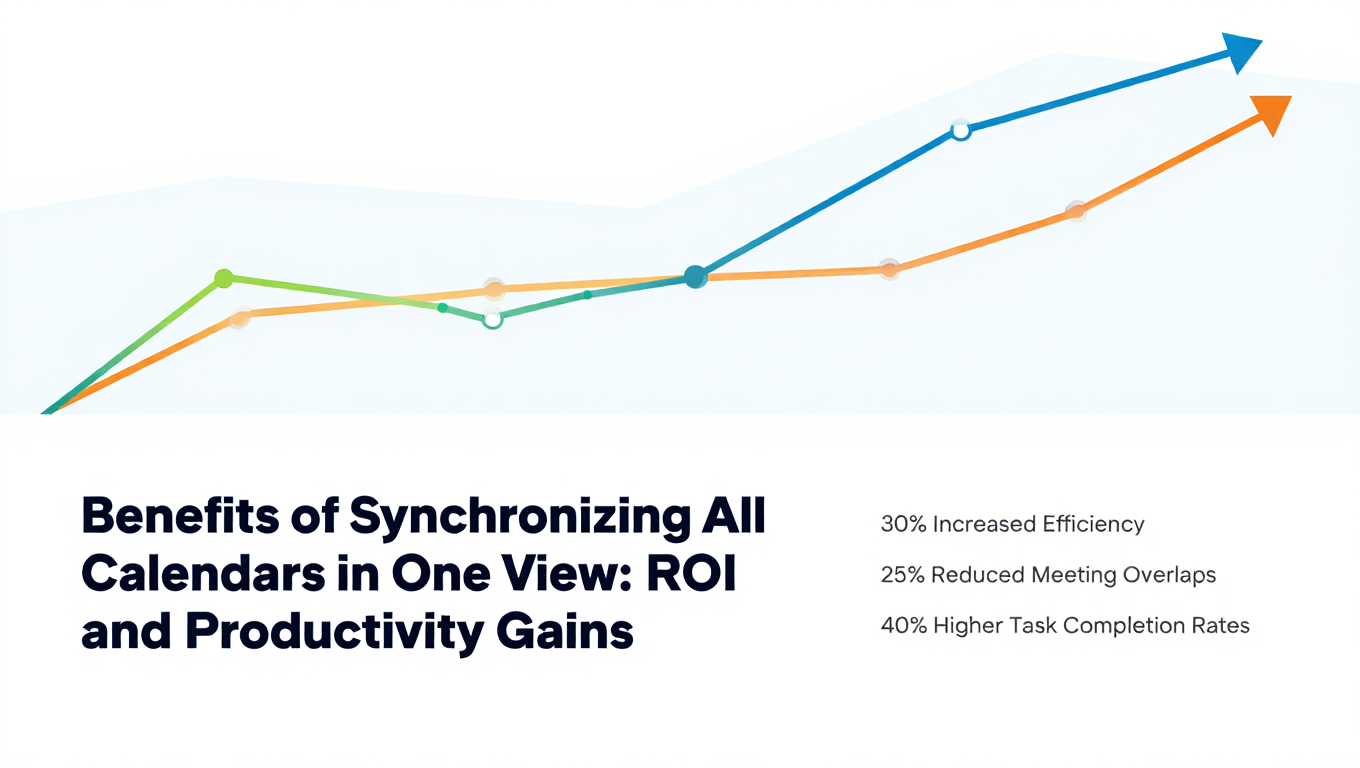
Benefits of Synchronizing All Calendars in One View: ROI and Productivity Gains
Discover the benefits of synchronizing all calendars in one view. See ROI data, productivity gains, reduced double bookings, and real-world business impact in 2025.
Best Bidirectional Calendar Sync Tools: 2025 Comparison Guide
Compare the best bidirectional calendar sync tools in 2025. Discover which platforms offer true two-way synchronization and which only provide one-way sync.
Best Two Way Calendar Sync Software: 2025 Expert Rankings & Comparison
Compare the top two-way calendar sync software tools. We tested 12 platforms for bidirectional sync speed, reliability, and field coverage to find which actually work.